LM Studio Windows Guide: Run Local LLMs Effortlessly
Learn how to install LM Studio on Windows, choose the best model, download quantized LLMs, and run your first local AI chat fast.

What LM Studio Is and Why You'd Want It on Windows
If you've been curious about the magic behind AI chatbots like ChatGPT or Claude, but felt locked out by complicated setups or recurring costs, you're in the right place. Large Language Models (LLMs) are the engines driving this AI revolution, and for the first time, running powerful versions of these models right on your own Windows PC is becoming accessible.
Enter LM Studio. At its core, LM Studio is a user-friendly desktop application that simplifies the process of discovering, downloading, and running LLMs locally. Think of it as an app store and an easy-to-use interface for AI models. This means you can:
- Experiment freely: Try out different models, ask them questions, and see what they can do without worrying about hitting API limits or incurring charges.
- Maintain privacy: Your conversations and data stay on your machine, offering a level of privacy that cloud-based services can't always guarantee.
- Work offline: Once models are downloaded, you can use them even without an internet connection.
- Develop faster: For developers, running models locally can drastically speed up iteration cycles for testing prompts, fine-tuning, or building AI-powered features.
This guide is designed for anyone on Windows who wants to dive into the world of local AI, from curious beginners to developers looking for a streamlined local LLM experience. We'll walk you through everything you need to get up and running, from checking your system's readiness to running your very first AI chat.
Before You Install: Check Your Windows Setup
Before you jump into downloading LM Studio, it's crucial to understand if your Windows machine is up to the task. Running LLMs, especially larger ones, can be resource-intensive. The primary bottlenecks are your system's RAM and, if you have one, your graphics card (GPU).
RAM and GPU: What You Actually Need
The amount of RAM and the power of your GPU directly determine which models you can run and how smoothly they'll perform.
- RAM (System Memory): This is where the model's parameters are loaded. More RAM means you can load larger, more capable models.
- GPU (Graphics Card): If you have a modern NVIDIA or AMD GPU, LM Studio can leverage it for significant speedups. This is often referred to as GPU acceleration. NVIDIA GPUs typically use CUDA, while AMD GPUs use ROCm (though support for ROCm can be more experimental).
- CPU (Central Processing Unit): If you don't have a compatible GPU, LM Studio can still run models using your CPU, but this will be considerably slower.
Here’s a general breakdown, but remember these are guidelines. Actual performance can vary!
| Feature | Minimum for Basic Models (e.g., 3B-7B parameters) | Recommended for Mid-Range Models (e.g., 7B-13B parameters) | Ideal for Larger Models (e.g., 30B+ parameters) |
|---|---|---|---|
| RAM | 8 GB | 16 GB | 32 GB+ |
| GPU | None (CPU-only, will be slow) | NVIDIA GeForce RTX 3070 (8GB VRAM) or equivalent AMD | NVIDIA GeForce RTX 3080/4070 (10GB+ VRAM) or equivalent AMD |
| CPU | Modern Quad-core (e.g., Intel i5/Ryzen 5) | Modern 6-core+ (e.g., Intel i7/Ryzen 7) | High-end 8-core+ (e.g., Intel i9/Ryzen 9) |
Key Takeaway: While you can run models on CPU-only setups, having a dedicated GPU with ample VRAM (Video RAM) will dramatically improve your experience. If you're unsure about your GPU, check your system information in Windows (search for "System Information").
Storage Space Reality Check
LLMs are not small. Even "quantized" versions (more on that later) can take up several gigabytes of disk space.
- Model Sizes: A small 7-billion parameter model might be 4-8 GB. Larger models (30B, 70B parameters) can easily exceed 30-60 GB each.
- LM Studio Storage: By default, LM Studio downloads models into a dedicated folder within your user directory (C:\Users\[YourUsername]\.lmstudio\models).
- Management: You'll want a decent amount of free space on your drive, preferably an SSD, for faster loading times. If you plan to experiment with many models, you might need 50-100 GB or more free. You can choose to download models to different drives if your primary SSD is small.
Tip
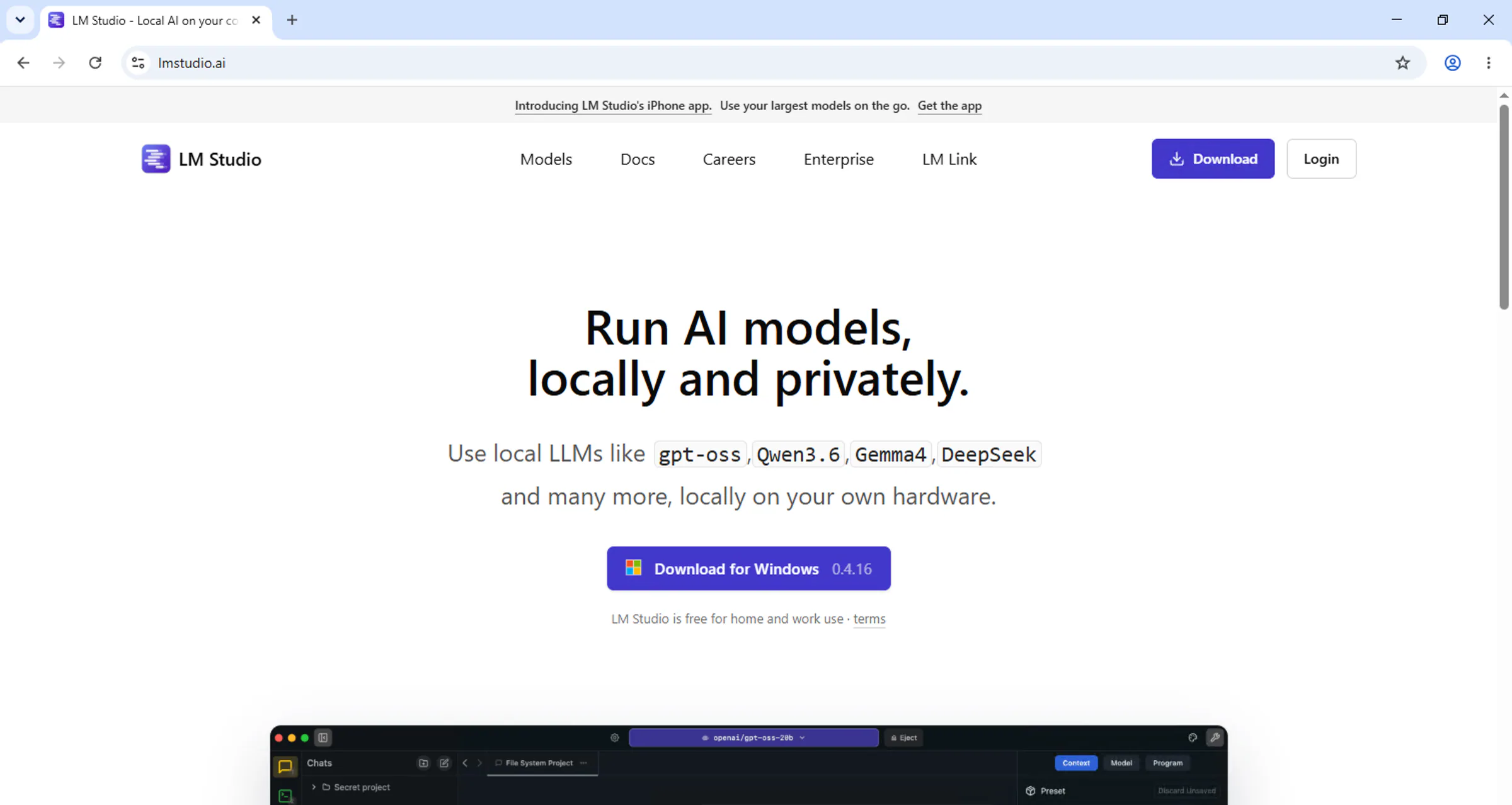
Download and Install LM Studio on Windows
Getting LM Studio onto your Windows machine is straightforward. We'll walk through the official download and installation process.
Your First Model: Picking Between Gemma 4, Qwen 3.5, and Others
With LM Studio installed, the exciting part begins: choosing a model! The landscape of LLMs can be overwhelming, but for beginners on Windows, a few stand out for their balance of performance, capability, and accessibility.
Gemma 4: Lightweight and Efficient
Google's Gemma models are designed to be efficient and accessible, making them a great starting point (eg. google/gemma-4-e4b).
- Strengths: Good at creative writing, summarization, and general Q&A. They are relatively small, meaning they can run reasonably well even on systems with less RAM or older GPUs.
- Use Cases: Writing assistance, brainstorming ideas, explaining concepts.
- Why it's good for beginners: Its smaller size means it's less demanding on your hardware, offering a smoother first experience.
Here's what makes Gemma 4 a solid choice:
- Lower Hardware Requirements: Accessible to a wider range of Windows PCs.
- Good Performance: Offers respectable quality for its size.
- Ease of Use: Integrates well with LM Studio's download and chat features.
Qwen 3.5: Balanced Performance and Capability
Developed by Alibaba Cloud, Qwen models are known for their strong performance across various tasks and excellent multilingual capabilities.
- What it excels at: Qwen 3.5 offers a great balance. It's capable of more complex reasoning, coding assistance, and handling longer conversations compared to smaller models.
- Multilingual Support: If you need to interact in languages other than English, Qwen is often a top contender.
- When to choose it: If your hardware can handle it (16GB+ RAM recommended, or a GPU with 8GB+ VRAM), Qwen 3.5 is a step up in capability from the smallest models.
Other Solid Options for Windows
While Gemma and Qwen are excellent starting points, don't hesitate to explore others as you get comfortable:
- Llama 3.2: Meta's latest open-source models are very capable and widely popular. The 3B parameter version is a good candidate for mid-range systems.
- Mistral 7B: Known for its efficiency and strong performance for its size, Mistral is another excellent choice that often punches above its weight class.
Ultimately, the "best" model depends on your hardware and what you want to do. Start with something smaller, and if your system handles it well, you can try larger, more complex models.
Download a Model Inside LM Studio
Now that you've got LM Studio open and have an idea of which models to try, let's get one downloaded. LM Studio makes this process surprisingly simple through its built-in model browser.
Q4_K_M, Q5_K_M, Q8_0, etc. This refers to quantization.Q4_K_M or Q5_K_M are good starting points. They offer a great balance between file size, RAM usage, and quality. Q8_0 files are larger and higher quality but require more resources.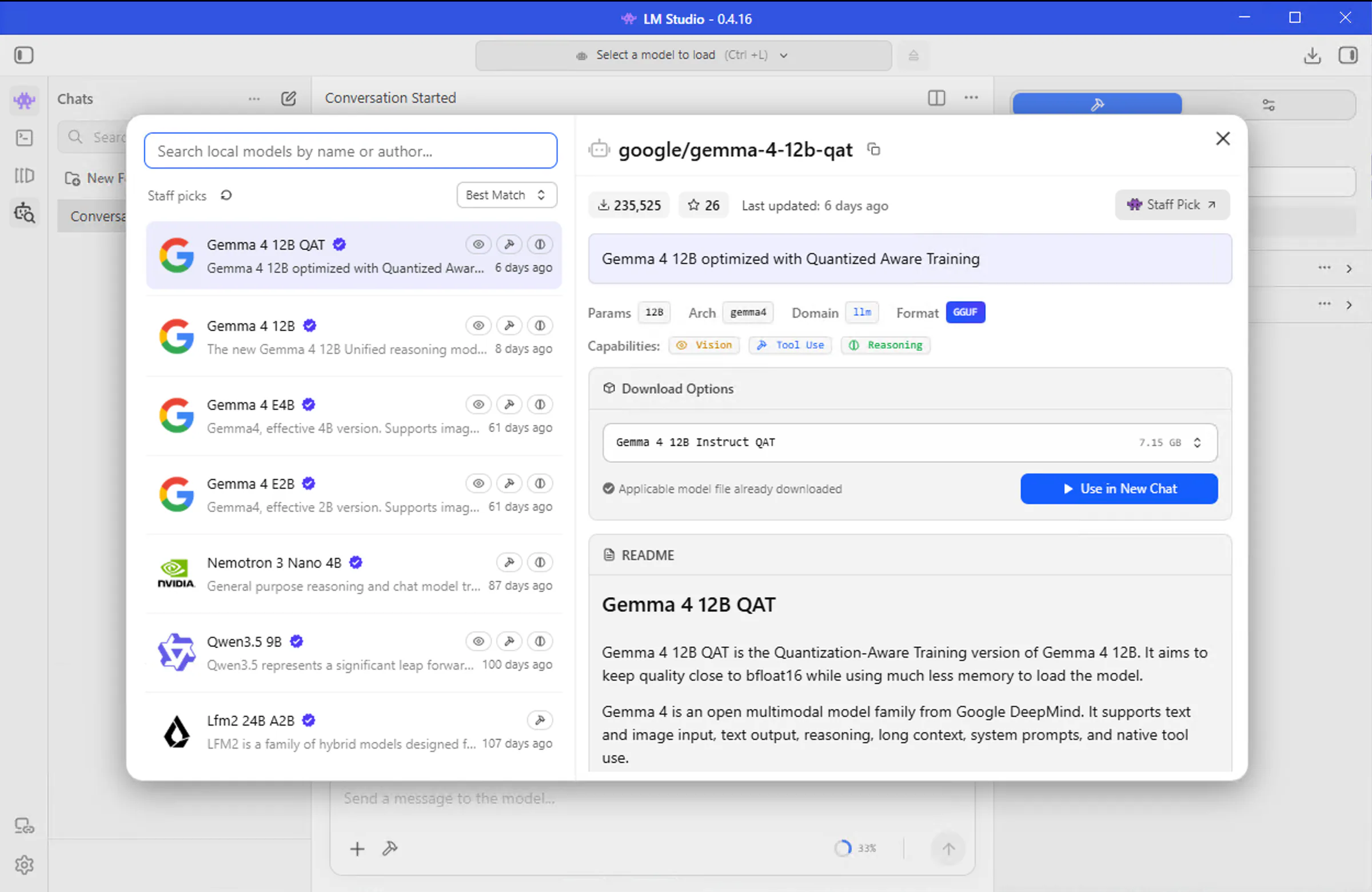
Understanding Quantization (Without the Math)
Quantization is a technique used to reduce the size and computational requirements of AI models. Think of it like compressing a high-resolution image into a smaller file – you might lose a tiny bit of detail, but the overall picture remains clear and the file is much easier to handle.
- Lower Quantization (e.g., Q4): Smaller file size, uses less RAM/VRAM, faster to load and run. Might have a slight reduction in accuracy or nuance.
- Higher Quantization (e.g., Q8): Larger file size, requires more RAM/VRAM, slower. Generally offers better accuracy and more detailed responses.
Here's a simplified view:
| Quantization Level | Typical File Size (for a 7B model) | RAM/VRAM Usage | Quality | Recommended For |
|---|---|---|---|---|
| Q2_K | ~3-4 GB | Low | Basic | Very limited hardware |
| Q4_K_M | ~4-5 GB | Moderate | Good | Most Windows PCs (GPU or CPU) |
| Q5_K_M | ~5-6 GB | Moderate-High | Very Good | Mid-range GPUs, more RAM |
| Q8_0 | ~7-8 GB | High | Excellent | High-end GPUs, 32GB+ RAM |
Tip
Q4_K_M or Q5_K_M for your first few models. If your system runs them smoothly, you can experiment with Q8_0 for potentially better output quality.Run Your First Chat Session
You've downloaded a model; now it's time to chat! LM Studio makes interacting with your local AI as easy as using any messaging app.
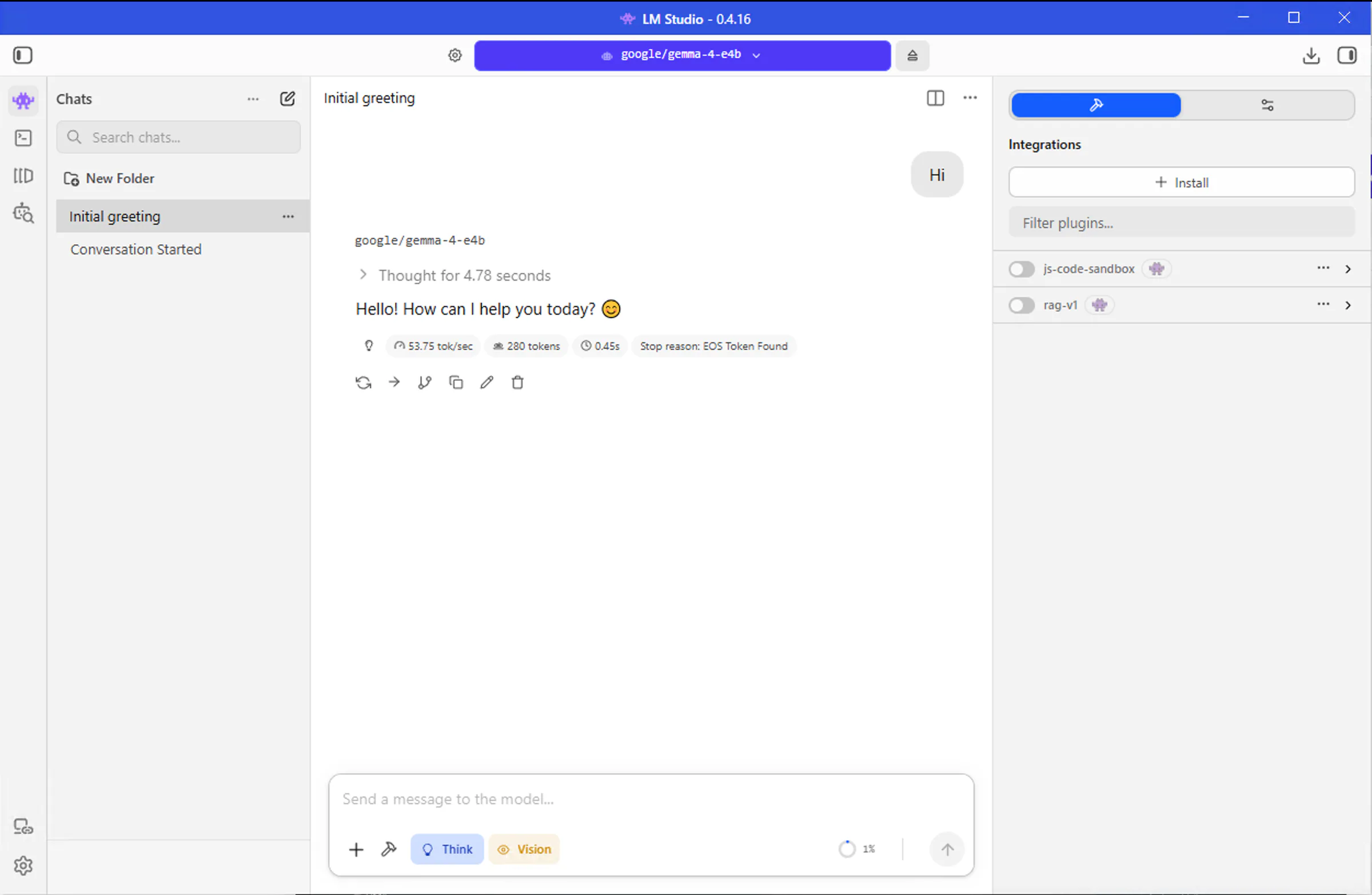
Congratulations! You've just run your first AI model locally on your Windows PC. Take a moment to appreciate the potential right at your fingertips.
Common Hiccups and How to Fix Them
Even with user-friendly tools like LM Studio, you might run into a few snags. Here are some common issues Windows users face and how to resolve them.
Model Won't Load or Crashes Immediately
This is almost always a sign of insufficient resources, primarily RAM.
- Check RAM Usage: Open Windows Task Manager (Ctrl+Shift+Esc) and go to the "Performance" tab. Monitor your "Memory" usage.
- Close Other Applications: Ensure no other memory-hungry programs are running in the background.
- Try a Smaller Model: If you're trying to load a large model (e.g., 30B or 70B parameters, or a Q8 quantization), your system might not have enough RAM.
- Try a Lower Quantization: If you downloaded a Q8 version, try downloading and loading the Q4_K_M or Q5_K_M version of the same model. The file size and RAM requirements will be significantly lower.
- Restart LM Studio: Sometimes, a simple restart can clear temporary issues.
GPU Acceleration Not Working
If you have a compatible NVIDIA or AMD GPU but LM Studio isn't using it, follow these steps:
- Update GPU Drivers: Ensure you have the latest drivers installed for your graphics card. Visit NVIDIA's or AMD's website to download them.
- Check LM Studio Settings: In LM Studio, go to the settings menu (often a gear icon). Look for "Hardware Settings" or "GPU Acceleration" options. Make sure GPU inference is enabled and that the correct GPU is selected.
- Verify Model Compatibility: Some older or very specific models might not fully support GPU acceleration, though this is rare with popular models.
- Fallback to CPU: If GPU acceleration continues to be problematic, you can disable it in the settings and let LM Studio use your CPU. Be prepared for much slower response times.
Responses Are Very Slow
This can happen for several reasons:
- CPU-Only Mode: If you're running without GPU acceleration, responses will naturally be slower, especially for complex prompts or longer generations.
- Model Size: Larger models require more computation, even on a GPU.
- Hardware Limitations: Your CPU or GPU might simply be at its limit.
- Context Window: If you're sending very long prompts or the model is generating a lengthy response, it takes more time.
Tip
LM Studio primarily supports NVIDIA GPUs with CUDA and newer AMD GPUs with ROCm. Check the LM Studio documentation or community forums for the most up-to-date compatibility list.
LM Studio is designed to run one model at a time for chat interactions. For more advanced multi-model workflows, you might need to explore other tools or custom setups.
Ensure you have a stable internet connection and sufficient disk space. Try canceling the download and starting it again. If problems persist, check the LM Studio community forums for known issues.
Tweaking Settings for Better Performance
Once you're past the initial setup and troubleshooting, you might want to fine-tune LM Studio's performance. The application offers several settings that can impact speed and quality.
Context Window and Batch Size
These are two important parameters that affect how the model processes information.
- Context Window: This refers to the maximum amount of text (input prompt + generated response) the model can "remember" or consider at any one time. A larger context window allows for longer conversations and more complex instructions, but it also requires more RAM/VRAM.
- Batch Size: This parameter determines how many tokens (pieces of words) the model processes simultaneously. Increasing batch size can sometimes speed up generation, but it also increases memory usage.
Tip
Here's a look at where you might find these settings:
| Setting | Description | Default (Example) | When to Adjust |
|---|---|---|---|
| Context Length | Maximum tokens the model considers. Larger means longer memory, but more RAM needed. | 2048 | Need longer conversations; have ample RAM. |
| GPU Layers | How many layers of the model to offload to the GPU. More layers = faster, but requires more VRAM. | All | Have sufficient VRAM; want maximum speed. |
| Batch Size | Number of tokens processed in parallel. Can speed up generation but increases VRAM/RAM usage. | 512 | Experiment for speed gains; monitor memory usage closely. |
| Threads | Number of CPU threads to use for processing. Relevant if running partially or fully on CPU. | Auto (System Cores) | Fine-tune CPU performance; may not impact GPU heavily. |
Beyond raw performance, you can tweak settings that influence the AI's creativity and randomness:
- Temperature: Controls randomness. Lower values (e.g., 0.2) make output more focused and deterministic. Higher values (e.g., 0.8) make it more creative and surprising.
- Top-P (Nucleus Sampling): Another way to control randomness. It selects from the most probable tokens whose cumulative probability exceeds a threshold (P). Lower P means more focused output.
These settings don't directly impact speed but shape the kind of responses you get. For factual queries, low temperature and top-p are good. For creative writing, higher values work well.
Using LM Studio Beyond the Chat Interface
While the chat interface is the most common way to interact with LM Studio, its capabilities extend further, particularly for developers. LM Studio can act as a local server for your AI models.
This means you can connect other applications or scripts to your locally running LLM, just as you would with a cloud-based API. This is incredibly powerful for building AI-powered features into your own applications without relying on external services.
To enable this:
- Go to the Local Server Tab: In LM Studio, find the server icon (often looks like a network or API symbol) on the left sidebar.
- Load a Model: Make sure you have a model loaded in the chat interface first.
- Start the Server: Click the "Start Server" button. LM Studio will then provide you with a local API endpoint (usually http://localhost:1234/v1).
You can then use tools like curl or programming language libraries (like Python's requests) to send prompts to this local server and receive responses.
1curl http://localhost:1234/v1/chat/completions \2 -H "Content-Type: application/json" \3 -d '{4 "model": "your-loaded-model-name",5 "messages": [6 {"role": "system", "content": "You are a helpful assistant."},7 {"role": "user", "content": "What is the capital of France?"}8 ]9 }'Info
Next Steps: Exploring More Models and Workflows
You've successfully installed LM Studio, downloaded models, had your first chat, and even peeked into its developer capabilities. This is just the beginning of your local AI journey!
- Experiment: Don't be afraid to download and try out different models. See which ones resonate with your hardware and your needs. Explore the vast libraries available on Hugging Face.
- Dive Deeper: If you're interested in fine-tuning models for specific tasks or exploring more advanced workflows, the world of open-source AI is constantly evolving.
- Community Resources: The LM Studio community forums and Discord server are great places to ask questions, share your findings, and learn from others.
Join the discussion on LM Studio Windows Guide: Run Local LLMs Effortlessly
Likes, comments, and replies are available for authenticated readers with verified email addresses.