Self-Host n8n on a VPS with Docker, PostgreSQL, and Caddy (2026)
Build a production n8n on a VPS with Docker Compose, PostgreSQL, and Caddy for automatic HTTPS, then harden and upgrade it safely. Verified end to end on n8n 2.36 and Postgres 16.
I stood this exact stack up before writing a line of it: n8n 2.36.8 talking to PostgreSQL 16.13, fronted by Caddy 2.11.4 for automatic HTTPS. Every command and version below comes from that run. If you have only used the one-line docker run for n8n, this is the production version: a real database instead of the default SQLite, HTTPS without hand-managing certificates, and a layout you can back up and upgrade without losing your workflows.
Key takeaways
- Use PostgreSQL, not the default SQLite: set
DB_TYPE=postgresdband theDB_POSTGRESDB_*variables.- Set a persistent
N8N_ENCRYPTION_KEYbefore first launch, or you lock yourself out of saved credentials on the next redeploy.- Let Caddy own HTTPS: point your domain at the server and it provisions a Let's Encrypt certificate automatically.
- Verified on n8n 2.36.8, PostgreSQL 16.13, Caddy 2.11.4.
Prerequisites
- A VPS (1 vCPU and 2 GB RAM is enough to start) on a recent Linux, with a public IP. New to running a server? Our secure VPS setup guide gets you to a safe baseline first.
- A domain or subdomain you control: an A record for
n8n.example.compointing at the VPS. - Docker Engine and the Compose plugin installed. New to Docker? Our RamaLama and Docker walkthrough covers the basics on your own machine first.
- Ports 80 and 443 open to the internet (Caddy needs them for HTTPS). Keep 5678 closed.
Heads up:
n8n.example.comis a placeholder. Replace it everywhere below (in.env, theCaddyfile, and your DNS record) with a subdomain you actually own, for examplen8n.yourdomain.com.example.comis a reserved documentation domain, so it will never issue a TLS certificate.
Step 1: Create the project and secrets
SSH into the VPS, make a directory, and generate two secrets: a database password and n8n's encryption key. The encryption key is the one people forget. n8n uses it to encrypt saved credentials, so if it changes between deploys, every stored credential becomes unreadable.
mkdir -p ~/n8n && cd ~/n8n{ echo "POSTGRES_PASSWORD=$(openssl rand -hex 24)" echo "N8N_ENCRYPTION_KEY=$(openssl rand -hex 24)" echo "N8N_HOST=n8n.example.com"} > .envchmod 600 .envSwap n8n.example.com for your domain.
Step 2: Write the Compose file
Create docker-compose.yml with three services: Postgres (n8n's database), n8n, and Caddy as the HTTPS reverse proxy. Note that n8n's port 5678 is not published to the host; Caddy reaches it over the internal network, so it never faces the internet directly. Every n8n setting used below is documented in n8n's hosting docs.
services: postgres: image: postgres:16-alpine environment: POSTGRES_USER: n8n POSTGRES_PASSWORD: ${POSTGRES_PASSWORD} POSTGRES_DB: n8n volumes: - pgdata:/var/lib/postgresql/data healthcheck: test: ["CMD-SHELL", "pg_isready -U n8n -d n8n"] interval: 5s timeout: 5s retries: 12 restart: unless-stopped n8n: image: n8nio/n8n:2.36.8 depends_on: postgres: condition: service_healthy environment: DB_TYPE: postgresdb DB_POSTGRESDB_HOST: postgres DB_POSTGRESDB_PORT: 5432 DB_POSTGRESDB_DATABASE: n8n DB_POSTGRESDB_USER: n8n DB_POSTGRESDB_PASSWORD: ${POSTGRES_PASSWORD} N8N_HOST: ${N8N_HOST} N8N_PROTOCOL: https N8N_PORT: 5678 WEBHOOK_URL: https://${N8N_HOST}/ N8N_ENCRYPTION_KEY: ${N8N_ENCRYPTION_KEY} N8N_RUNNERS_ENABLED: "true" GENERIC_TIMEZONE: UTC volumes: - n8ndata:/home/node/.n8n restart: unless-stopped caddy: image: caddy:2-alpine depends_on: [n8n] ports: - "80:80" - "443:443" volumes: - ./Caddyfile:/etc/caddy/Caddyfile - caddydata:/data - caddyconfig:/config restart: unless-stopped volumes: pgdata: n8ndata: caddydata: caddyconfig:I pinned n8n to 2.36.8, the version I tested, so your deploy matches this guide. Bump it deliberately later rather than tracking latest blindly.
Step 3: Write the Caddyfile
n8n.example.com { reverse_proxy n8n:5678}That is the entire HTTPS setup. Once your domain resolves to the server and 80 and 443 are reachable, Caddy requests a Let's Encrypt certificate on the first visit and renews it on its own. No certbot, no cron job.
Step 4: Launch and verify
docker compose up -dCompose starts Postgres first, waits for its healthcheck to pass, then starts n8n, which connects and runs its database migrations. Confirm both:
docker compose psdocker compose logs -f n8n # watch the migrations finish, then Ctrl-COn my run, n8n 2.36.8 came up healthy in about ten seconds once the images were cached, and the log showed it running its migration set against Postgres 16.13. That is exactly what you want to see: n8n is using Postgres, not silently falling back to SQLite. If you temporarily add ports: ["127.0.0.1:5678:5678"] to the n8n service, curl http://localhost:5678/healthz returns {"status":"ok"}. Remove it once Caddy is serving.
Open https://n8n.example.com and n8n prompts you to create the owner account. Do that immediately, before anyone else finds the URL.
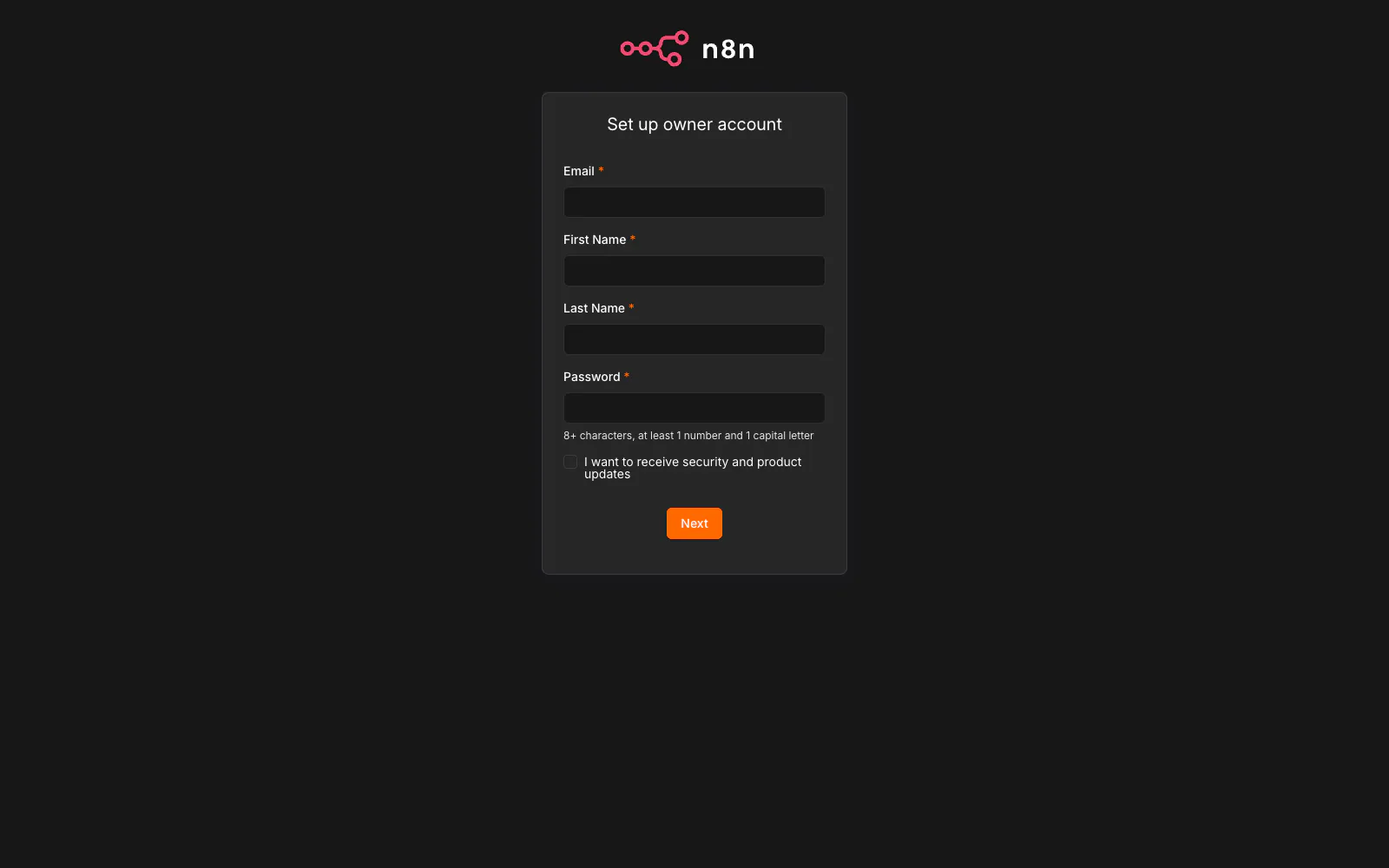
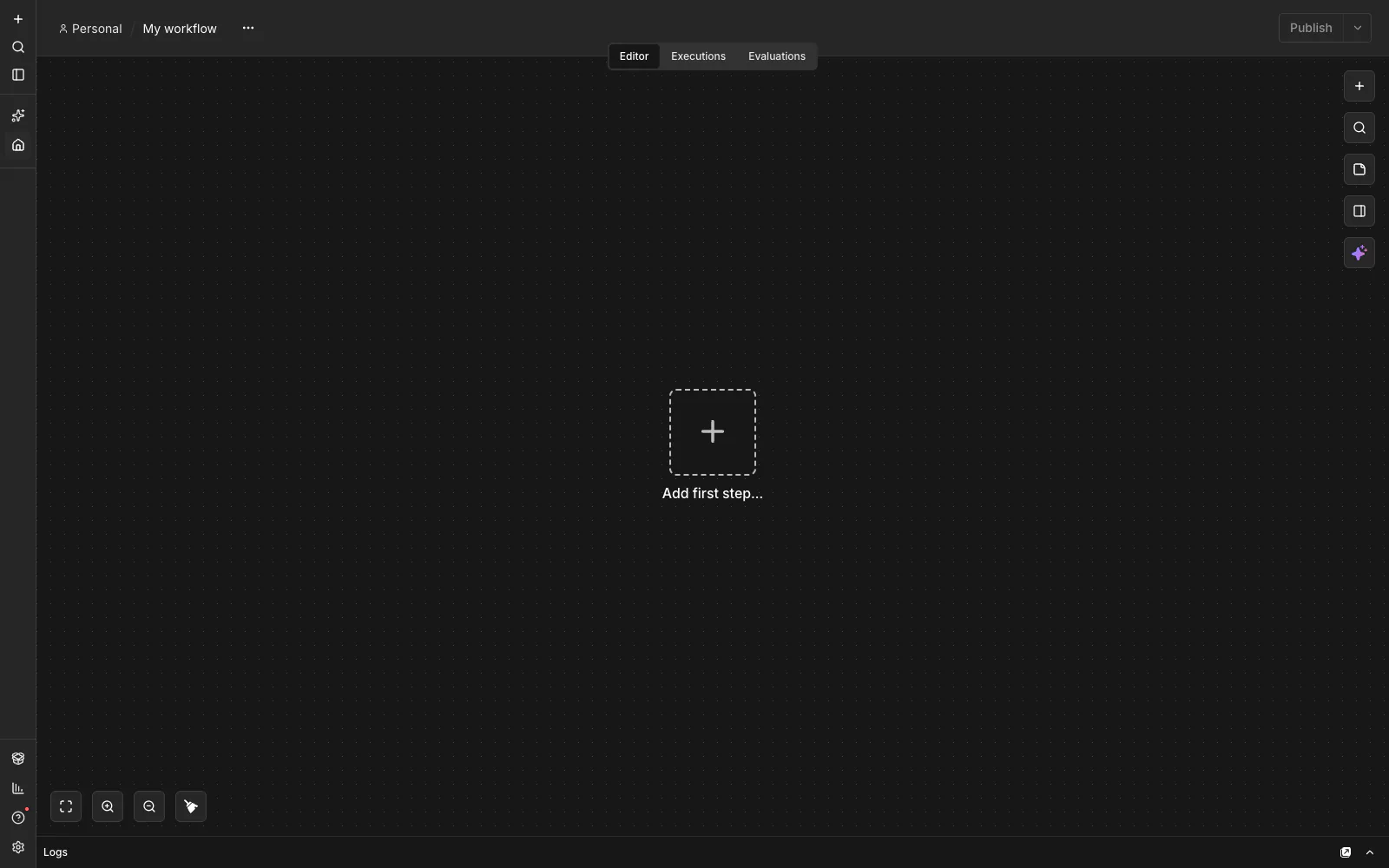
Once that is done you land on the workflow editor, ready to build your first automation:
Step 5: Harden it
A few settings separate a demo from something you leave running:
- Encryption key: you set
N8N_ENCRYPTION_KEYin Step 1. Keep.envbacked up somewhere safe; losing it means re-entering every credential by hand. - Firewall: allow only SSH, 80, and 443. On Ubuntu:
ufw allow OpenSSH && ufw allow 80,443/tcp && ufw enable. Never expose 5678. - Restart policy:
restart: unless-stopped(already in the file) brings the stack back after a reboot. - Stay patched: keep the host updated, and treat n8n version bumps as a deliberate step.
Step 6: Back up and upgrade
Two volumes hold your state: pgdata (workflows, executions, credentials) and n8ndata (n8n's config). Back up both.
# database dumpdocker compose exec -T postgres pg_dump -U n8n n8n | gzip > n8n-db-$(date +%F).sql.gz# n8n data volumedocker run --rm -v n8n_n8ndata:/data -v "$PWD":/backup alpine \ tar czf /backup/n8n-data-$(date +%F).tar.gz -C /data .To upgrade, change the pinned tag in docker-compose.yml, then:
docker compose pull n8ndocker compose up -d n8nn8n runs any new migrations on start. Because your data lives in the Postgres and n8ndata volumes, the container itself is disposable, which is the entire point of running it this way.
Common issues
- Credentials read as broken after a redeploy. The
N8N_ENCRYPTION_KEYchanged. Restore the original key from your.envbackup. - The certificate never issues. Caddy needs the domain's A record pointing at the server and ports 80 and 443 reachable. Check
docker compose logs caddyfor ACME errors. - n8n warns about task runners. n8n 2.x expects
N8N_RUNNERS_ENABLED=true, which is already set above.
FAQ
Do I need PostgreSQL, or is SQLite fine? SQLite works for a hobby instance, but for anything you rely on, Postgres handles concurrent executions and backups far better. Switching later is a migration; starting on Postgres avoids it.
Can I use Nginx instead of Caddy? Yes, but Caddy's automatic HTTPS is the reason it is here: one line of config versus managing certbot and renewals.
How much server do I need? A 1 vCPU and 2 GB VPS runs a light instance. Heavy or highly concurrent workflows want more RAM and, eventually, n8n's queue mode with separate worker containers.
Final thoughts
The shape here, an application plus Postgres plus Caddy in one Compose file, is the same one you will reuse for most self-hosted tools. Set the encryption key, let Caddy own TLS, keep your state in named volumes, and upgrades become a two-line routine.
Verified end to end on n8n 2.36.8, PostgreSQL 16.13, and Caddy 2.11.4.
Join the discussion on Self-Host n8n on a VPS with Docker, PostgreSQL, and Caddy (2026)
Likes, comments, and replies are available for authenticated readers with verified email addresses.